
Anúncios
Understanding your WiFi network is essential for security, speed, and control over your digital environment in today’s connected world.


Every device in your home connects to your WiFi network, from smartphones and laptops to smart TVs and security cameras. Yet most people know surprisingly little about their own wireless network.
Anúncios
Checking your WiFi information isn’t just about technical curiosity—it’s about protecting your privacy, optimizing performance, and ensuring you’re getting what you pay for from your internet service provider.
Whether you’re concerned about unauthorized users, experiencing slow speeds, or simply want to understand your network better, learning how to access and interpret your WiFi information puts you in control.
Anúncios
This comprehensive guide will walk you through everything you need to know about checking your WiFi details, from basic connection information to advanced network analysis.
🔍 Why Checking Your WiFi Information Matters
Your WiFi network carries sensitive data every single day. Banking information, personal conversations, work documents, and private photos all travel through your wireless connection. Without proper monitoring, you might never know if someone unauthorized is piggybacking on your network, potentially accessing your personal information or slowing down your connection.
Beyond security concerns, understanding your WiFi details helps you troubleshoot connectivity issues more effectively. When you know your signal strength, channel congestion, and connected devices, you can make informed decisions about router placement, network upgrades, and device management. Many people pay for high-speed internet but never realize they’re not getting optimal performance due to simple configuration issues.
📱 Basic WiFi Information You Can Check Right Now
Your smartphone or computer already has built-in tools to check essential WiFi information. On most devices, simply tapping or clicking on your WiFi icon reveals your network name (SSID) and signal strength. But there’s much more information available if you know where to look.
Accessing WiFi Details on Different Devices
On Windows computers, clicking the WiFi icon and selecting “Properties” under your connected network reveals IP address, protocol, security type, and network band. Mac users can hold the Option key while clicking the WiFi menu icon to see detailed information including channel, transmit rate, and RSSI (signal strength indicator).
Mobile devices offer similar access. iPhone users can tap the information icon next to their connected network in Settings, while Android users find detailed information under WiFi settings by tapping their connected network name. These native tools provide a solid foundation for understanding your connection without installing additional software.
🛡️ Security Information: Protecting Your Network
The security protocol your network uses is one of the most critical pieces of information to check. Modern networks should use WPA3 or at minimum WPA2 encryption. If your router still uses WEP or WPA, your network is vulnerable to relatively simple hacking techniques.
Your network password strength matters just as much as the encryption protocol. Even with WPA2, a weak password can be cracked through brute force attacks. Checking which devices are authorized to connect and regularly reviewing your connected device list helps identify potential security breaches before they become serious problems.
Identifying Unknown Devices on Your Network
One of the most important security checks involves scanning for devices you don’t recognize. Every device connected to your network has a unique MAC address and typically displays a device name. Regularly reviewing this list helps you spot unauthorized access quickly.
Many routers allow you to view connected devices through their admin interface, but specialized apps make this process much easier and more informative. These tools not only list connected devices but often provide manufacturer information, connection history, and bandwidth usage data that helps you identify suspicious activity.

📊 Network Performance Metrics Worth Monitoring
Signal strength is measured in dBm (decibels relative to one milliwatt), with numbers closer to zero indicating stronger signals. A signal of -30 dBm is excellent, -50 dBm is very good, -60 dBm is good, and anything below -70 dBm may cause performance issues. Understanding these numbers helps you optimize router placement and identify dead zones in your home.
Download and upload speeds tell you whether you’re getting the internet performance you’re paying for. Your actual speeds depend on numerous factors including your ISP, router capabilities, device capabilities, and network congestion. Regular speed tests help establish baselines and identify when something isn’t working correctly.
Understanding WiFi Channels and Interference
WiFi networks operate on specific channels within the 2.4 GHz and 5 GHz frequency bands. In crowded areas like apartment buildings, multiple networks competing on the same channel create interference that degrades performance for everyone. Checking which channels neighboring networks use helps you select the optimal channel for your router.
The 2.4 GHz band has 11 channels in most countries, but only channels 1, 6, and 11 don’t overlap with each other. The 5 GHz band offers many more non-overlapping channels, which is one reason it typically provides better performance in congested environments, though with shorter range than 2.4 GHz.
🔧 Accessing Your Router’s Admin Interface
Your router’s administrative interface contains comprehensive information about your network. Accessing it requires knowing your router’s IP address (typically 192.168.1.1 or 192.168.0.1) and login credentials. This information is usually printed on a label on the router itself.
Once logged in, you’ll find detailed information including:
- Complete list of connected devices with MAC addresses
- DHCP settings and assigned IP addresses
- Port forwarding and firewall configurations
- Firmware version and update availability
- Wireless settings including channel, bandwidth, and security protocols
- Guest network configuration options
- Parental controls and access scheduling
- Network usage statistics and logs
Modern routers often include mobile apps that provide easier access to this information than web interfaces. These apps typically offer simplified views of network health, connected devices, and security settings that make monitoring your network more convenient.
📡 Advanced Network Information for Power Users
Beyond basic connectivity details, advanced users can access deeper network information using specialized tools. Network scanning applications reveal not just connected devices but also open ports, shared folders, and potential vulnerabilities in your network security.
Packet analyzers let you see exactly what data is traveling across your network. While this level of detail isn’t necessary for most users, it can be invaluable for troubleshooting complex issues or identifying bandwidth-hogging applications and devices.
DNS and Gateway Information
Your DNS (Domain Name System) servers translate website names into IP addresses. Checking which DNS servers your network uses can impact both speed and security. Many users benefit from switching from their ISP’s default DNS to faster or more privacy-focused alternatives like Google DNS, Cloudflare DNS, or OpenDNS.
Your default gateway—typically your router’s IP address—is the pathway between your local network and the broader internet. Understanding this configuration helps when troubleshooting connectivity issues or setting up advanced networking features like VPNs or network attached storage devices.
🌐 Public WiFi: Information You Should Check Before Connecting
Public WiFi networks require extra caution. Before connecting, verify you’re joining the legitimate network—attackers sometimes create fake networks with similar names to capture user data. Check with staff about the correct network name and whether a password is required.
Once connected to public WiFi, avoid accessing sensitive information unless you’re using a VPN. Check your device’s sharing settings to ensure you’re not broadcasting files or services to other network users. Many operating systems have a “public network” mode that automatically increases security when connected to unfamiliar networks.
🔄 Regular Network Health Checks
Establishing a routine for checking your WiFi information helps you catch problems early. Consider performing these checks monthly:
- Review all connected devices and remove any you don’t recognize
- Run speed tests to ensure consistent performance
- Check for router firmware updates
- Verify your security settings remain configured correctly
- Review network usage statistics to identify unusual patterns
- Test signal strength in different areas of your home
These regular checkups take just a few minutes but can prevent security breaches, optimize performance, and help you catch issues before they become serious problems.
💡 Using Mobile Apps for Comprehensive Network Analysis
Dedicated WiFi analyzer apps provide the most user-friendly way to access comprehensive network information. These applications combine multiple monitoring functions into intuitive interfaces that make complex network data accessible to non-technical users.
Quality WiFi monitoring apps offer real-time visualization of network activity, instant notifications when new devices connect, detailed device information including manufacturer and connection history, signal strength mapping for optimizing router placement, and security scanning to identify vulnerabilities. The best apps balance comprehensive features with ease of use, making network monitoring a simple part of your regular digital housekeeping.
🚀 Optimizing Your Network Based on Information Gathered
Once you’ve gathered information about your WiFi network, use those insights to make improvements. If signal strength is weak in certain areas, consider repositioning your router to a more central location, elevating it higher, or adding a WiFi extender for larger homes.
If you discover multiple networks competing on your channel, switch to a less congested one. For persistent interference issues, consider upgrading to a dual-band or tri-band router that can take advantage of the less crowded 5 GHz spectrum.
When to Consider Network Upgrades
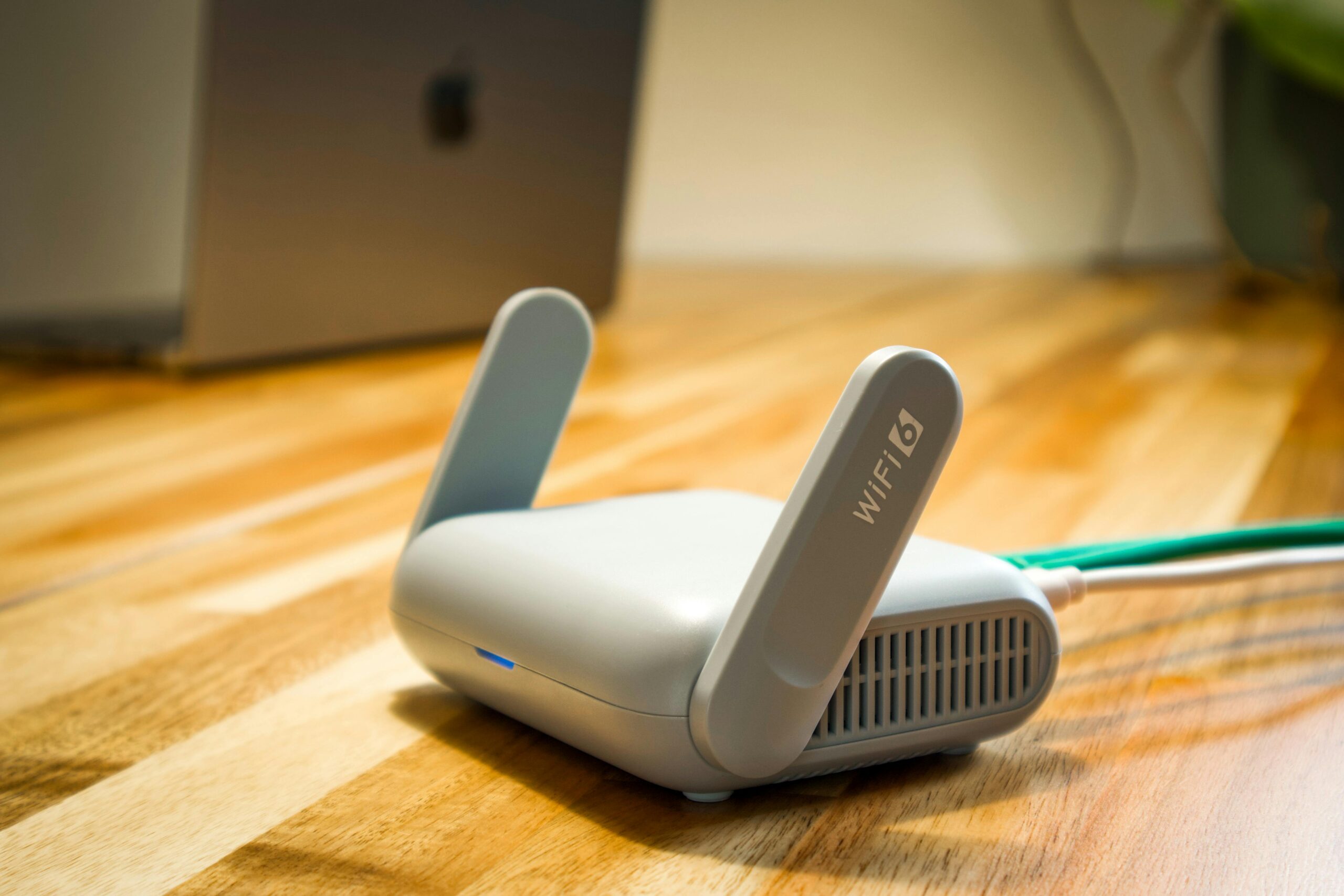
Your network information might reveal it’s time for hardware upgrades. If your router is more than five years old, it likely doesn’t support modern WiFi standards like WiFi 6, which offers significantly better performance, especially with multiple connected devices.
Similarly, if you consistently see slow speeds despite having high-speed internet service, your router may be the bottleneck. Checking your router’s specifications against your internet plan helps identify when equipment upgrades would provide meaningful improvements.
🎯 Taking Control of Your Digital Environment
Understanding your WiFi information transforms you from a passive user into an active network administrator. You gain the ability to troubleshoot issues independently, optimize performance, enhance security, and make informed decisions about your internet service and equipment.
The tools and techniques covered here work together to give you complete visibility into your wireless network. From simple built-in device settings to comprehensive monitoring applications, you now have multiple options for checking every aspect of your WiFi, each appropriate for different situations and technical comfort levels.
Regular monitoring becomes easier with practice, and the benefits compound over time. You’ll notice problems faster, understand your network’s behavior patterns, and maintain better security through consistent oversight. Your WiFi network is too important to remain a mystery—take charge today and enjoy the peace of mind that comes with truly understanding your connection to the digital world.
